
Navigation Guide
Find your way around Yorker — a quick tour of every section and how to access each feature.
Here is a quick tour of how Yorker is laid out and where to find everything.
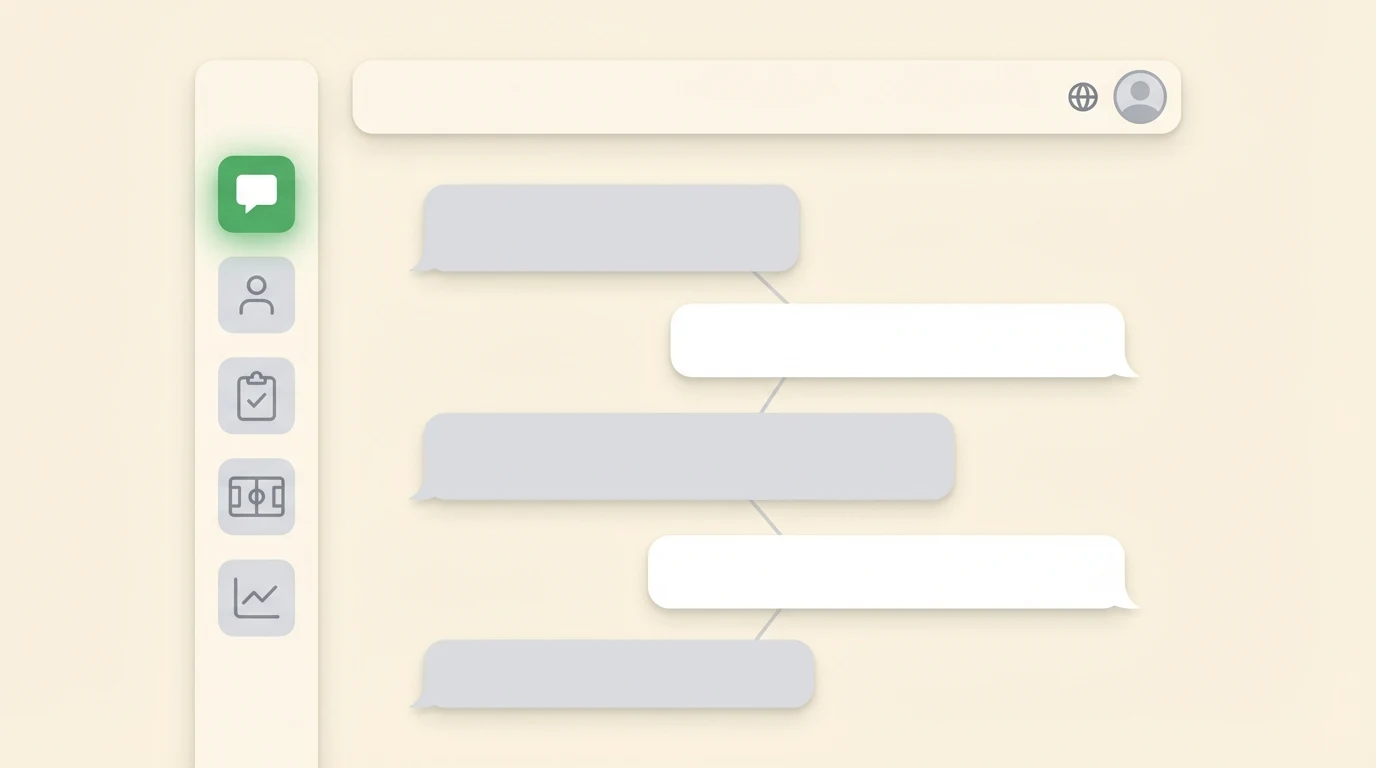
Desktop sidebar
After signing in, you will see a compact icon-rail sidebar on the left with these sections:
- Home — Your personal coaching dashboard with the coach chat, activity rings, streaks, daily goals, and recommendations
- Lessons — Browse and watch video coaching chapters, track your progress through each lesson
- Mental — Guided mental-training sessions: audio-narrated visualization, breathing, and pressure work
- Live 1-1 — Face-to-face video sessions with your AI coach (when enabled on your account)
- History — Your past coaching conversations. On desktop, hover over this to see a flyout panel with your full conversation list
- More — Opens a popover with additional features:
- Technique Lab — Advanced technique analysis with skeleton overlays and joint-angle comparisons
- Credentials — View your earned certificates and achievement badges
At the bottom of the sidebar, tap your avatar to access settings, personalization, billing, and sign out.
Starting a new conversation
Tap the + button at the top of the sidebar to start a new AI coaching conversation. This takes you to the dashboard with a fresh chat input ready.
Top bar
On the right side of the top bar you will find:
- Notifications bell — Alerts for new achievements, streak reminders, and system messages
- Account selector — Switch between your personal account and any team accounts you belong to
- Your avatar — Opens a dropdown with profile settings, language selection, usage info, and sign out
Mobile layout
On phones, the navigation switches to a bottom tab bar:
- Home — Dashboard
- Lessons — Video chapters
- History — Past conversations
- Profile — Settings and account menu
The full sidebar is accessible via the hamburger menu (top-left) on mobile.
Quick navigation
On desktop, press Cmd+K (Mac) or Ctrl+K (Windows) to open the command palette. Search for any feature, lesson, or setting and jump directly to it.
Creating with the coach, revisiting in your library
All AI generation happens in the coach chat — switch the focus mode (or just ask) to create:
- Practice Plans — "Give me a 45-minute batting session"
- Match Scenarios — Play interactive decision-making scenarios with scored outcomes
- Field Placement — Design complete, format-legal field settings
- Nutrition Plans — Personalised match-day and training-day fueling
- Drills — Step-by-step drills with timers and audio cues
- Video Analysis — Upload a photo or video for technique feedback
Everything you create is saved automatically to its own library page — Scenarios, Practice Plans, Field Placement, Nutrition Plans, and Drills — where you can revisit it, mark it done, or continue working on it in chat. Find these pages any time through the command palette (Cmd+K / Ctrl+K), and log your cricket in Match Journal, Training Log, Season Goals, and My Journey the same way.
Team accounts
If you are part of a team, the account selector in the top bar lets you switch to your team workspace. Team accounts have their own dashboard, lesson library, and member management. See Team Accounts for details.
Keyboard shortcuts
On desktop:
- / — Focus the chat input
- Cmd+K / Ctrl+K — Command palette (quick search)
- Esc — Close any open dialog or overlay